
Blog
Internet Installation Checklist Before Your Appointment

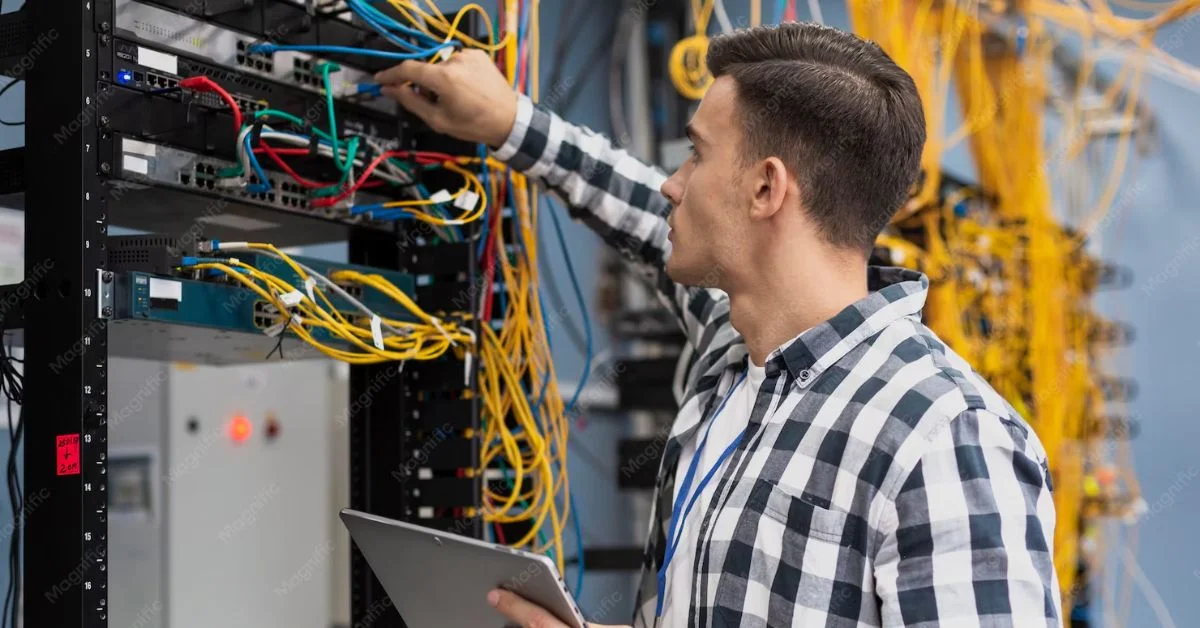
Internet setup should be simple, but many homeowners only realize something is missing after the technician arrives. A locked utility room, missing account details, no landlord approval, blocked outlets, unclear equipment needs, or poor router placement can turn a routine appointment into a frustrating delay.
An internet installation checklist helps you prepare before the appointment window begins. It gives you a clear way to check your home, confirm your internet service details, understand possible installation fees, and avoid common internet setup challenges.
Whether you are moving into a new place, upgrading your plan, switching providers, or setting up home internet for the first time, a little preparation can save time and prevent unnecessary rescheduling.
Why an Internet Installation Checklist Matters
Internet installation depends on more than the technician showing up. Your home may need the right outlet, access to a utility room, landlord approval, working wiring, proper equipment, and accurate account details.
If one piece is missing, the technician may not be able to complete the installation. This can cause internet installation delays, extra charges, or another appointment.
A checklist helps you prepare the home before the technician arrives. It also helps you think through your household internet needs, speed requirements, equipment setup, and possible hidden internet costs before service begins.
Confirm the Appointment Window
Start by checking the appointment window. Internet providers often give a time range instead of an exact arrival time. Make sure someone 18 or older is available during the full window if the provider requires it.
Keep your phone nearby in case the technician calls before arriving. Some appointments are missed because the technician cannot reach the customer or access the property.
Confirm the date, time, service address, provider name, and any instructions listed in the appointment confirmation. A simple mistake in the address or unit number can delay the whole installation.
Keep Account Details Ready
Account details are important during installation. Keep your order number, account number, phone number, email address, service address, and provider confirmation available.
The technician may need to verify the service plan, equipment type, installation notes, or access instructions. If you are switching from another provider, keep cancellation dates and old equipment details nearby too.
Having account details ready can reduce confusion and help the appointment move faster.
Check for Landlord Approval
If you rent your home, apartment, or condo, check whether landlord approval is needed before installation. Some properties do not allow drilling, wiring changes, fiber installation, wall plates, or equipment mounting without permission.
A technician may refuse to complete certain work without approval. This can create delays, especially if the provider needs to install a new line or access shared building equipment.
Before the appointment, ask your landlord, property manager, or building office about installation rules. Written approval is best if any physical work may be required.
Make Sure the Technician Can Access Key Areas
Technicians may need access to more than one room. They may need to reach a utility room, basement, garage, exterior wall, wiring panel, apartment building telecom closet, coax outlet, fiber terminal, or Ethernet ports.
Move boxes, furniture, or storage items away from these areas before the appointment. If the utility room is locked, arrange access in advance.
Lack of access is one of the most common reasons internet installation delays happen. A clear path helps the technician work safely and complete the job more efficiently.
Find the Coax Outlet or Fiber Terminal
Your home internet setup may depend on a coax outlet, fiber terminal, or existing wiring. Cable internet usually uses a coax outlet. Fiber service may use a fiber terminal or optical network terminal.
Look around the home before the appointment. Find the outlets and note where they are located. If you do not see a coax outlet or fiber terminal, tell the provider before the appointment if possible.
This helps set expectations and may prevent surprises during installation.
Decide Where the Modem and Router Should Go
Modem and router placement can affect internet performance. A modem connects your home to the provider’s network. A router sends Wi-Fi throughout the home.
The router should usually be placed in a central, open location when possible. Avoid hiding it in a cabinet, placing it on the floor, or putting it behind a TV. Thick walls, metal objects, appliances, and long distances can weaken Wi-Fi.
Planning router placement before the appointment can help reduce future internet dead zones and improve coverage across the home.
Think About Ethernet Ports
Ethernet ports can support stronger wired connections for devices such as desktop computers, gaming consoles, smart TVs, workstations, and home office equipment.
If your home has Ethernet ports, ask the technician whether they are active or can be used with your setup. Wired connections can be useful for remote work, gaming, large file uploads, and video calls.
Not every home has active Ethernet wiring, so it is better to ask during installation instead of discovering the issue later.
Choose the Right Internet Speed Before Installation
Many homeowners ask, how much internet speed do I need before setting up service. The answer depends on the number of users, number of devices, streaming habits, gaming, remote work, smart TVs, laptops, phones, and smart home devices.
A small household with light browsing and streaming may not need a high-speed plan. A family with video calls, 4K streaming, gaming, schoolwork, and smart devices may need more bandwidth.
Choosing the wrong speed before installation can lead to frustration after the technician leaves. Review your real family internet needs before the appointment.
Compare 100 Mbps vs 300 Mbps vs 1 Gig
The comparison of 100 Mbps vs 300 Mbps vs 1 gig can help you understand common plan tiers before installation.
A 100 Mbps plan may work for light use, simple browsing, email, and a few connected devices. A 300 Mbps plan may be a better fit for many families with streaming, video calls, smart TVs, phones, laptops, and school or work needs.
A 1 gig plan may be useful for heavy internet users, large households, gaming, 4K streaming, smart homes, cloud backups, and many devices online at the same time. The best plan should match your daily habits, not just the biggest number available.
Decide if Gigabit Internet Is Worth It
Many families wonder, is gigabit internet worth it before installation. It may be worth it if your household has multiple remote workers, online gamers, several 4K streams, smart security cameras, frequent large downloads, cloud backups, or many connected devices.
It may not be necessary if your household mostly browses, checks email, streams on one or two screens, and uses a few phones or laptops.
Choosing gigabit internet without needing it may create higher monthly costs. Choosing too little speed can create buffering, slow downloads, and performance issues. The right plan should balance cost and usage.
Plan for Internet Speed for Smart Homes
Internet speed for smart homes depends on how many connected devices you have and what those devices do. Smart lights, plugs, thermostats, and speakers usually use little bandwidth. Smart TVs, video doorbells, security cameras, gaming consoles, and cloud-connected devices can need more.
Upload speed also matters if security cameras send footage to the cloud. Router capacity matters because smart devices often stay connected all day.
Before installation, count your smart devices and think about where they are located. This can help you plan router placement and decide whether you may need mesh Wi-Fi.
Ask About Hidden Internet Costs
Installation is a good time to ask about hidden internet costs. These may include installation fees, activation fees, equipment rental, modem charges, router rental, Wi-Fi extender costs, early termination fees, data overage charges, service protection plans, or price increases after a promotional period.
Ask what is included in the monthly price and what is not. Also ask whether you can use your own modem or router if you prefer.
Understanding costs before the appointment helps avoid surprises on the first bill.
Confirm Installation Fees
Some providers offer free installation during promotions. Others charge installation fees depending on service type, property wiring, technician work, or equipment setup.
Ask whether your appointment includes a standard installation fee. Also ask what could create extra charges.
For example, new wiring, special equipment, wall fishing, additional outlets, or repeat visits may cost extra. Clear pricing helps you avoid confusion later.
Prepare the Rooms Where Equipment May Go
Before the technician arrives, clear the areas where equipment may be installed. Move furniture away from wall outlets, coax outlets, fiber terminals, Ethernet ports, desks, TV stands, and utility spaces.
Make sure pets are secured and children stay away from work areas. Technicians may need to use tools, test equipment, or access wiring.
A prepared space helps the installation move smoothly and safely.
Test Power Outlets Before the Appointment
Modems, routers, fiber terminals, and other equipment need power. Check that nearby electrical outlets work properly.
Avoid using loose outlets, overloaded power strips, or areas where equipment may be unplugged accidentally. A stable power source helps prevent future connection issues.
If the best internet location does not have a nearby outlet, plan ahead so you know whether the router can be placed somewhere else.
Check Old Equipment
If you are replacing an old internet service, gather old modems, routers, cables, power cords, and provider-owned equipment. You may need to return equipment to avoid extra charges.
Do not throw away old equipment until you know whether it belongs to you or the provider. Equipment return fees can become one of the hidden internet costs homeowners forget about.
If you plan to use your own modem or router, confirm compatibility with the provider before the appointment.
Avoid Common Internet Setup Challenges
Common internet setup challenges include poor router placement, missing landlord approval, inaccessible utility rooms, inactive outlets, wrong service address, outdated equipment, weak Wi-Fi coverage, and unclear account details.
Many of these problems can be prevented before the technician arrives.
A little preparation can reduce the chance of a second appointment and help your internet service work better from day one.
Ask Questions During the Technician Appointment
The technician appointment is a good time to ask practical questions. Ask where the modem and router are installed, how to restart them, what lights mean, what equipment belongs to the provider, and how to contact support.
Ask whether your Wi-Fi signal looks strong in the main rooms. Ask about Ethernet options if you work from home or game online.
You do not need to understand every technical detail, but you should know the basics of how your home internet setup works.
Run a Speed Test After Installation
Once installation is complete, run a speed test near the router. Then test in bedrooms, the living room, home office, basement, and other areas where people use the internet.
This helps you identify internet dead zones early. If speed is strong near the router but weak in certain rooms, the issue may be Wi-Fi coverage instead of the internet plan.
Testing before the technician leaves may help you ask questions while support is still in the home.
Check Wi-Fi Name and Password
Before the technician leaves, confirm the Wi-Fi network name and password. Make sure your phones, laptops, smart TVs, tablets, and other important devices can connect.
Change the default password if needed. Use a strong password that is easy for your household to remember but hard for outsiders to guess.
A clean setup can help avoid confusion when connecting devices later.
Review the First Bill Carefully
After installation, review your first bill. Look for installation fees, equipment rental, activation charges, taxes, service dates, promotional discounts, and any fees you did not expect.
Your first bill may be higher than a normal monthly bill because it may include one-time charges or partial-month billing.
Reviewing it early helps you catch errors and understand your actual monthly cost.
Internet Installation Checklist
Use this internet installation checklist before your appointment:
- Confirm the appointment window
- Keep account details ready
- Check landlord approval if needed
- Make sure the technician can access utility areas
- Find the coax outlet or fiber terminal
- Clear space around outlets and equipment areas
- Decide where the modem and router should go
- Ask about Ethernet ports
- Confirm installation fees
- Ask about hidden internet costs
- Check whether your modem or router is compatible
- Secure pets and clear work areas
- Test power outlets
- Run a speed test after installation
- Check Wi-Fi name and password
- Review the first bill carefully
This checklist can help reduce delays and make your home internet setup easier.
How Get Home Utilities Helps
Get Home Utilities helps homeowners connect essential services, including internet service, so moving, setup, and household planning feel easier to manage.
Choosing internet service is not only about booking an appointment. It also involves speed, equipment, installation fees, family internet needs, smart home devices, Wi-Fi coverage, and possible hidden internet costs.
With better preparation, homeowners can avoid common internet installation delays and start with a setup that supports daily life more reliably.
Highlighted Takeaway
An internet installation checklist can help homeowners prepare for a technician appointment, avoid internet installation delays, reduce internet setup challenges, and understand hidden internet costs. Before installation, confirm account details, access points, equipment needs, installation fees, landlord approval, router placement, and whether your internet service plan fits your family internet needs.
Final Thoughts
Internet installation can go smoothly when the home is ready. The biggest problems often come from simple issues: blocked access, missing approval, unclear equipment needs, wrong plan selection, or poor router placement.
Before your appointment, check your space, confirm your details, ask about fees, and think through your household’s real speed needs. A prepared home makes it easier for the technician to complete the installation and for your internet to work well after setup.
A strong internet service starts before the first device connects.
Frequently Asked Questions
What should be on an internet installation checklist?
An internet installation checklist should include appointment details, account information, landlord approval, utility room access, outlet locations, modem and router placement, installation fees, and speed testing.
How do I avoid internet installation delays?
Avoid internet installation delays by clearing access areas, confirming the service address, checking landlord approval, keeping account details ready, and making sure the technician can reach the required outlets or utility spaces.
How much internet speed do I need before installation?
The answer depends on users, devices, streaming, gaming, remote work, smart TVs, and smart home devices. A family with heavy usage may need more speed than a light-use household.
What is better in 100 Mbps vs 300 Mbps vs 1 gig?
100 Mbps may fit light use, 300 Mbps may fit many families, and 1 gig may fit heavy users with many devices, 4K streaming, gaming, smart homes, and large downloads.
Is gigabit internet worth it for home internet setup?
Gigabit internet may be worth it for heavy users, large families, smart homes, remote workers, gamers, and homes with many connected devices. Light-use homes may not need it.
What hidden internet costs should I ask about?
Common hidden internet costs include installation fees, activation fees, equipment rental, modem or router charges, Wi-Fi extender costs, data overage fees, early termination fees, and price increases after promotions.
